Disclaimer
We realize the page below has a lot of content and looks jumbled. The intention of this page is to show you all the various paragraph bundles you can use on a landing page. To see some examples of showcase pages where these elements are used to achieve successful designs, visit our showcase pages.
This is a Horizontal Navigation Paragraph Bundle
Generally, you can use this content type to create navigation to other pages or, as in this case, to various elements on the same page. The amount of links placed in this content type will dictate its height and width.
You can choose for this menu to be light (as you see below) or dark. You can also decide if you would like items to be left-aligned or centered (as they are below).
Horizontal Navigation Instructions
See the Horizontal Navigation article for information on creating this. | Visit our Horizontal Navigation page to see more variations.
This is a Text Paragraph Bundle
You can center the title of this content type, left-align it, or hide it altogether.
In general, you can use this paragraph type to build textual elements. Keep in mind as you are using it that you will still need to follow hierarchical order for headers in order to maintain WCAG 2.1 AA compliance.
Depending on your level of access, you can also switch the Text Format of the editor to Full HTML to introduce additional elements such as tables and inline images.
See the Text article for information on creating this. | Visit our Text page to see more variations.

This is an Image and CTA Paragraph Bundle
This content type is meant to display an image (either on the left or right), along with brief text and a call to action (CTA) button urging users to take action on something. This is also a full-text field so you have all WYSIWYG elements.
See the Image and CTA article for information on creating this.

This is an Image and Text Block Paragraph Bundle
An Image and Text Block is similar to an Image and CTA, but it is generally meant for longer-form content, as the space here is bigger. You can make the background light or dark (this one is light) and you can align the image left or right. You can also choose to add a sidebar by the image. Like an Image and CTA, this is a full-text field so you have all WYSIWYG elements.
See the Image and Text Block article for information on creating this.
Visit our Image and Text Block page to see more variations.
This is a Video and Text Block Paragraph Bundle
A Video and Text Block is similar to an Image and Text Block in that it is generally meant for longer-form content, but this content type embeds a video rather than an image. Like an Image and Text Block, you can make the background light or dark (this one is light) and you can align the video left or right. You can also choose to add a sidebar by the video. Like both an Image and CTA and Image and Text Block, this is a full-text field so you have all WYSIWYG elements.
See the Video and Text Block article for information on creating this.
Visit our Video and Text Block page to see more variations.

Image and Stat Block Instructions
You can use this content type to present statistics on your site (e.g., cost of tuition, student populations, etc.) with minimal text to support it. You can also include an image beside it, whether left or right-aligned.
See the Stat Block article for information on creating this. | Visit our Stat Block page to see more variations
This is a Card Set Paragraph Bundle Using Cards
You can use Card Sets, along with image and text, to present entry points into other content areas of your site. You have many options for cards—title options, card size, justification of cards and text, and whether to include a card border or not.
These cards can display in anything from 5-across to 2-across per row. Content and images scale accordingly.

Information Card
This card set is set to medium (3-across), the cards are justified, and the text is left-aligned. This first card is non-linked and uses a medium title size.

Knowledge Base Card
This card uses a CTA button to take you into our Knowledge Base for instructions on creating this content type.

Sample Page Card
The entirety of this card is linked so you can visit our Card Set (Cards) page to see more variations of this content type.
This is a Card Set Paragraph Bundle Using Icons
You can use Card Sets with Icons, along with text and pre-built icons, to present entry points into other content areas of your site. You have many options for icon sets—title options, icon size, justification of icons and text, and whether to include a border or not.
These icons can display in anything from 5-across to 2-across per row. Content and spacing scale accordingly.
This is an Accordion Set Paragraph Bundle
For this accordion set, we've added a left-aligned title and specified that there should be a background for each accordion and that each should be closed when a user enters the page.
You also have other options—you can chose to hide or center the title, hide the gray background, keep all accordions open after others are selected, or set the first accordion to open on page load.
See the Accordion Set article for information on creating this. | Visit our Accordion Set page to see more variations.
Treat this area as you would a normal text field.
For example, you wouldn't want to use the first accordion as an FAQ and the second as a header for additional content.
This is a File Form-link Table Paragraph Bundle
You can center the title of this content type, left-align it, or hide it altogether.
You can use this paragraph type to post .pdf files or individual form links, and you can add as many as you like in any variation you choose, though it's nice to keep things consistent.
See the File Form-link Table article for information on creating this. | Visit our File Form-link Table page to see more variations.

Full-Width Image Instructions
See the Full-Width Image article for information on creating this. | Visit our Full-Width Image page to see more variations
Full-Width Video Instructions
See the Full-Width Video article for information on creating this. | Visit our Full-Width Video page to see more variations
This is a Slideshow Paragraph Bundle
Slideshows are a great way to display many images visually. There are four different slideshows you can use to present your images: Full-Width (a 100% width image with pagination navigation at the bottom to transition between slides), Slides Per View (a series of three images displayed in view at the same time), Thumbs (a thumbnail with thumbs navigation at the bottom of the main image to transition between slides), and Coverflow (a thumbnail slideshow with thumbs navigation at the bottom of the main image to transition between slides).
Each Slideshow type has an Autoplay feature and you can set the Autoplay Delay timeframe between slide transitions.
Regardless of which Slideshow type you select, a minimum of three images is recommended.
The Slideshow below uses the Coverflow layout.



Slideshow Instructions
See the Slideshow article for information on creating this. | Visit our Slideshow page to see more variations








Masonry Gallery Instructions
^ Click through the images above for more notes about using this content type.
See the Masonry Gallery article for information on creating this. | Visit our Masonry Gallery page to see more variations
This is a Student Club Paragraph Bundle
You can build this content type by creating a Student Club from the Add Content menu. You can build as many as you like and then use the in-page editor to place them.
See the Student Club article for information on creating this. | Visit our Student Club page to see more variations.
Student Club 3

Lorem ipsum dolor sit amet, consectetur adipiscing elit, sed do eiusmod tempor incididunt ut labore et dolore magna aliqua. Ut enim ad minim veniam, quis nostrud exercitation ullamco laboris nisi ut aliquip ex ea commodo consequat. Duis aute irure dolor in reprehenderit in voluptate velit esse cillum dolore eu fugiat nulla pariatur.
This is a Testimonial Paragraph Bundle
You can build this content type by creating a Success Story from the Add Content menu. When adding to the page, you can select whether the image appears left or right and what color theme appears in the background. These use light. The first one does not have the link to the Success Story and the second one does.
See the Testimonial article for information on creating this. | Visit our Testimonial page to see more variations.
Student 1 Testimonial
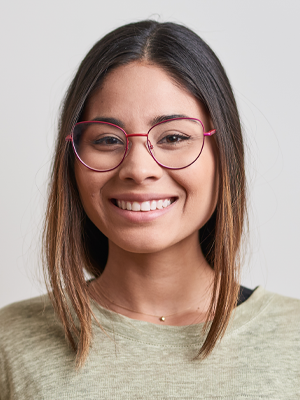
Lorem ipsum odor amet, consectetuer adipiscing elit. Natoque neque interdum augue augue, suspendisse hac cras interdum ante. Parturient sapien mus duis nec lectus euismod ad eu. Felis dapibus orci ultricies fames ullamcorper dignissim duis mattis tristique. Duis quam sagittis phasellus sociosqu natoque ultrices libero sem eros.
This is a Tile Set Paragraph Bundle
Tile Sets are similar to Card Sets, though this content type can only be three across and relies on Font Awesome icons, SVGs, or college logos to render its imagery.
You can use Tile Sets, along with image and text, to present entry points into other content areas of your site. You have many options for Tiles—title options, size, and whether to include a tile border or not. You can also configure the color of your icons (this one uses dark grey).
See the Tile set article for information on creating this. | Visit our Tile set page to see more variations.
Title
Information Tile
This tile set is set to medium (3-across). This first title is non-linked and uses a medium title size.
Title
Knowledge Base Tile
This tile uses a link to take you into our Knowledge Base for instructions on creating this content type.
Title
Sample Page Tile
This tile uses a link to take you into our Tile Set page so you can see more variations of this content type.
Quote
This is similar in visual presentation to a Testimonial, but does not require a success story to be created. It a one time use to create a paragraph for quoting someone.
See the Quote article for information on creating this. | Visit our Quote page to see more variations.
Quote

All Page Building Tools
All Paragraph Bundles
Take a deeper dive into how you can use each Paragraph Bundle in the Common Framework by looking at our extensive examples pages, which demonstrate all variations of each content type:
Accordion Set | Button Set and Text Block | Card Set (Cards) | Card Set (Icons) | File Form-link Table | Full-Width Image | Full-Width Video | Horizontal Navigation | Image and CTA | Image and Stat Block | Image and Text Block | Masonry Gallery | Quote | Slideshow | Tab Set | Text | Tile Set | Video and Text Block